
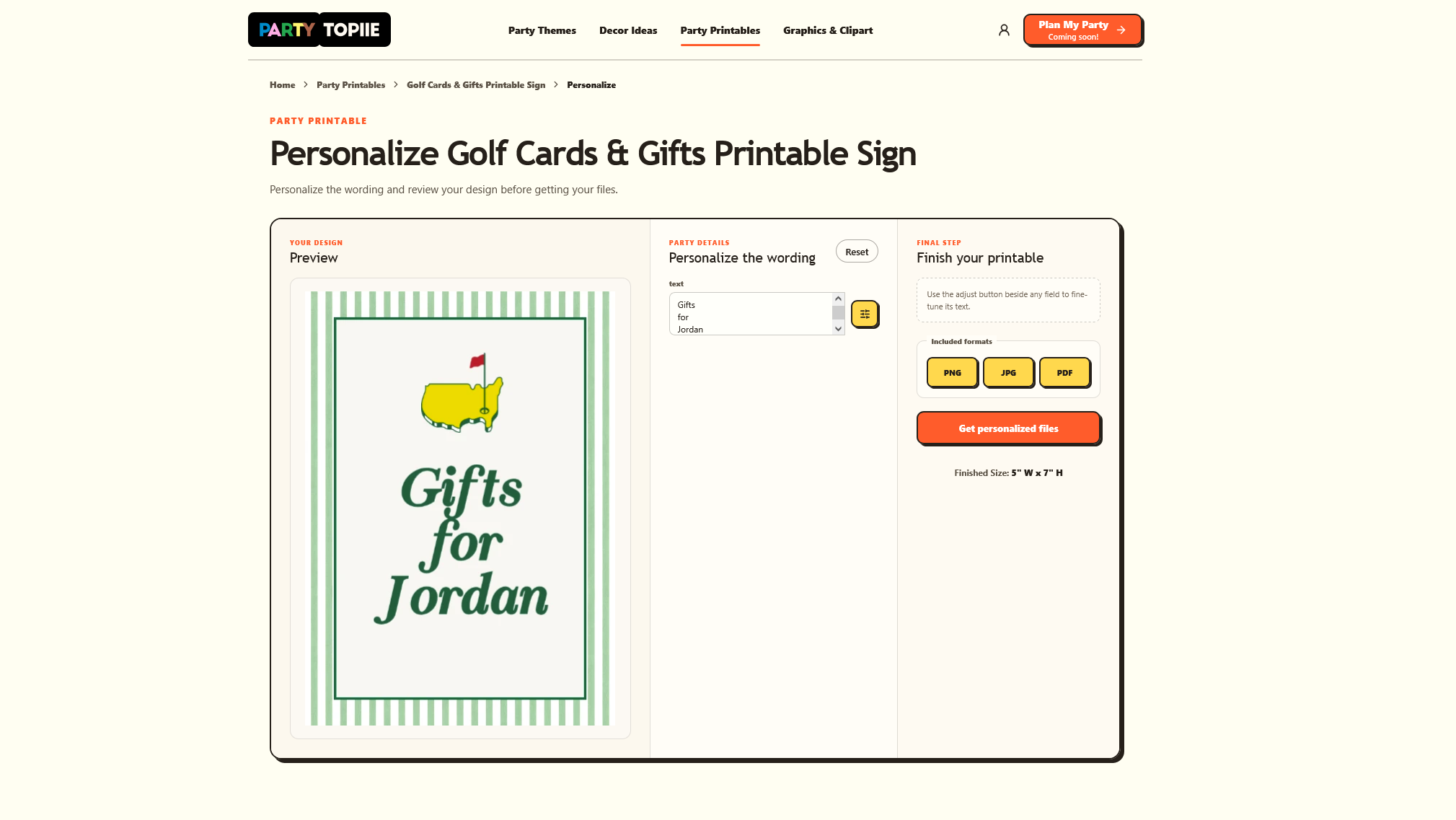
Choose a ready-made design, add your words, and save a PDF you can open and check before printing. This example uses the Golf Cards & Gifts Printable Sign with the wording “Gifts for Jordan.” You’ll need a free PartyTopiie.com account and a device that can save and open a PDF.
STEP 1 OF 5
Choose a Design and Check Its Options and Requirements
Open the Golf Cards & Gifts Printable Sign.
Check its Finished Size: 5″ W × 7″ H means 5 inches wide and 7 inches tall. Its wording can be changed, and the page lists PNG, JPG, and PDF files.
Click “Personalize for Free.” Sign in or create a free account. If you choose email login, enter your email address, click “Email me a login link,” and open the link in your email.
Changing the words and seeing the result are free. For a paid design, you pay when you get the finished files. You can pay the displayed dollar price or use Credits, the site’s prepaid balance. Free designs do not require payment.
STEP 2 OF 5
Enter Your Text in the Available Fields
Under “Personalize the wording,” find the box labeled “text.” This design has one text box.
Replace its sample words with these three lines:
Gifts
for
Jordan
Press Enter after “Gifts” and again after “for” to start each new line. Replace Jordan with the name you want on the sign.
Leave the other settings unchanged for this example. Other designs may have different text boxes.
STEP 3 OF 5
Check Names, Line Breaks, Size, and Orientation in the Preview
The Preview is the picture showing your changes. Wait for your new words to appear, then check:
- The name is spelled correctly
- Each part of the message is on the intended line
- Every word is visible inside the border
- The sign is upright and its Finished Size is 5″ W × 7″ H
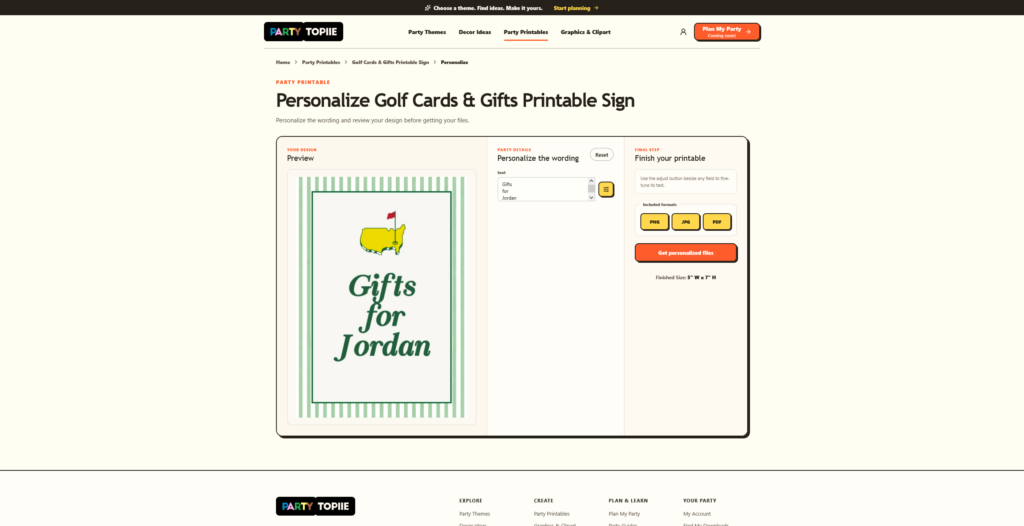
Need a change? Edit the text box, then check the updated picture again. If your wording looks crowded, try fewer words or different line breaks.
Continue only when the preview shows the message you want.
STEP 4 OF 5
Get Your Print-Ready File
Click “Get personalized files.” When “Ready to download?” appears, check your words one last time. Your wording and adjustments will be locked to this order, so make changes before confirming.
For this paid design, choose the displayed payment option. Our example used “Use 2 Credits.” After confirmation, the Order details page opens.
Click “Download” beside your sign. Then follow these three steps:
- Size & layout: keep 5″ W × 7″ H and click “Continue.”
- Paper & preview: select “Single design.” Check that the preview shows one upright sign, then click “Continue.”
- File type: select “PDF,” then click “Generate & download.” Wait for the file to save to your device.
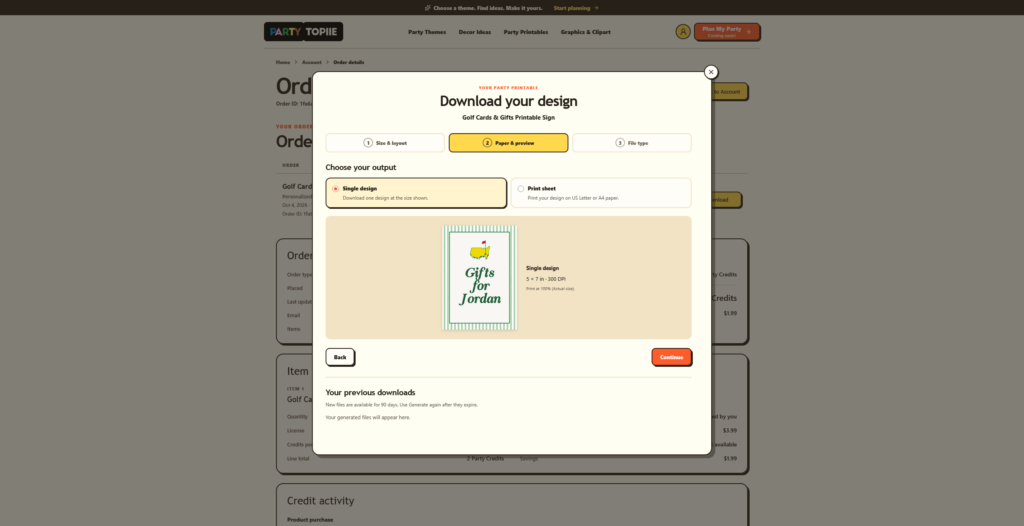
This example gives you a PDF with one 5 × 7-inch sign on one page.
STEP 5 OF 5
Open and Check the File
Open the PDF from your browser’s downloads list or your device’s Downloads folder.
Check the saved file itself. You should see:
- One page with one upright sign
- “Gifts for Jordan,” or the words you entered
- All words and borders fully visible
If your PDF viewer shows page information, check that the page is 5 × 7 inches.
If the page size or layout is wrong, return to your order, click “Download,” and repeat the three download steps above. Open the new PDF and check it again.
If the wording is wrong, stop before printing and email support@partytopiie.com with your order reference, the item name, and the correction you need.
Once the file matches your choices, it is ready for printing. To keep the sign at 5 × 7 inches, choose “Actual size” or “100%” when you print.
This guide was verified on PartyTopiie.com on October 4, 2026.